
Text To Anim Clip
Content Browser > Add > Animation > Text To Anim Clip, or Save as Clip from the panel.
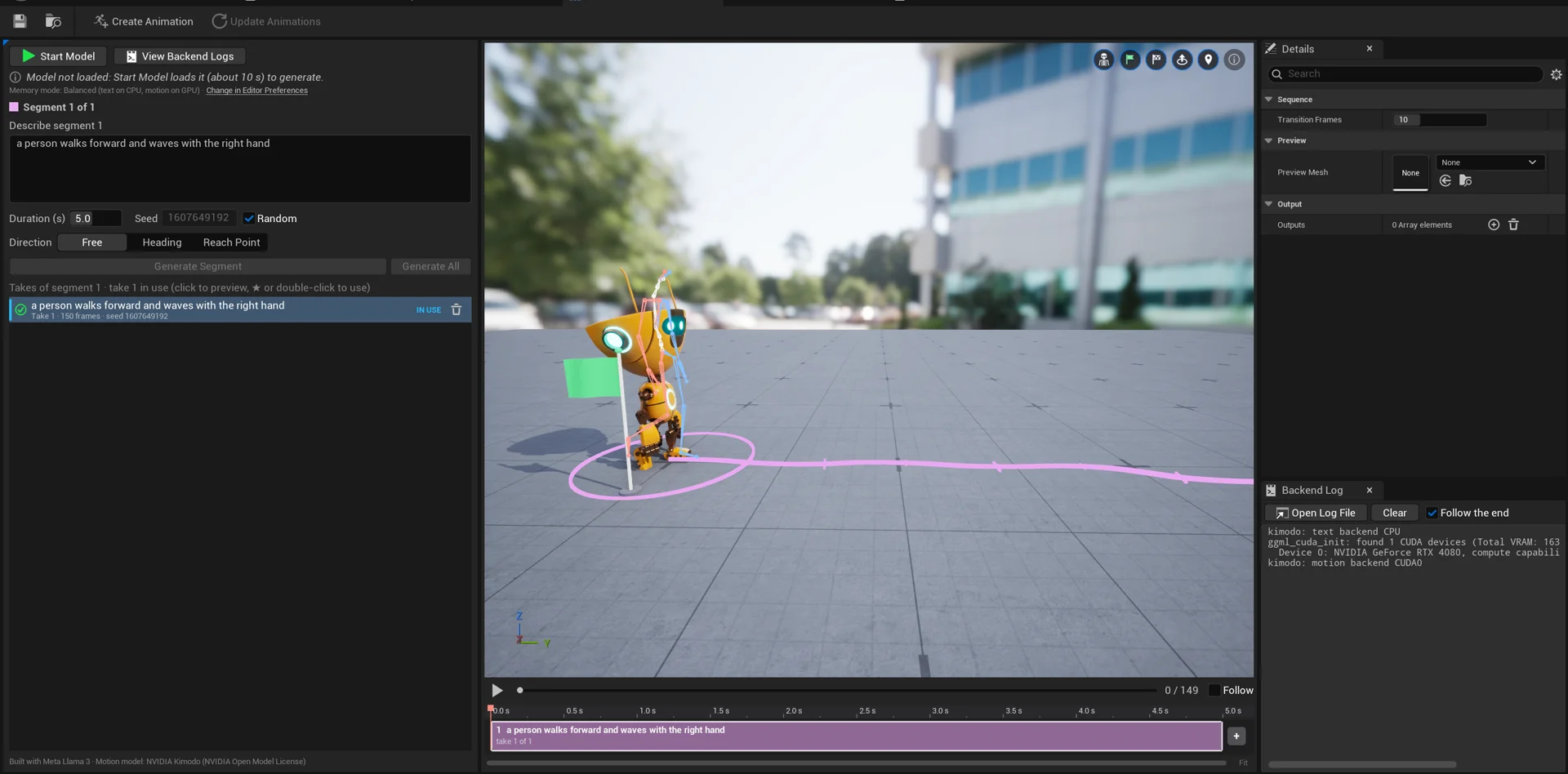
A Clip is a sequence of segments, each with its own prompt, duration, seed and takes, shown on a timeline under the viewport. The model generates the transition between consecutive segments, so "walk forward" → "turn left" → "sit down" becomes one continuous motion.
Segments and takes
- Select a segment on the timeline (or click its part of the trajectory in the viewport) to edit it on the left.
- Generate Segment creates a new take of the selected segment; Generate All generates the segments that need it, in order.
- Click a take to preview it; keep the one you like in use with ★ or a double click. The take in use is the one that goes into the animations you create.
- Changing a segment marks the following ones as to regenerate (striped on the timeline), because each segment continues from the end of the previous one.
Timeline
- Drag the edges of a segment to change its duration (up to 10 s per segment, up to 16 segments).
- Drag a segment to reorder it; right click for more options; + adds a segment at the end.
- The play bar above the timeline plays the whole Clip; Follow keeps the camera on the character.
- Transition Frames in the Details panel sets how many frames each segment blends from the previous one (default 10).
Direction
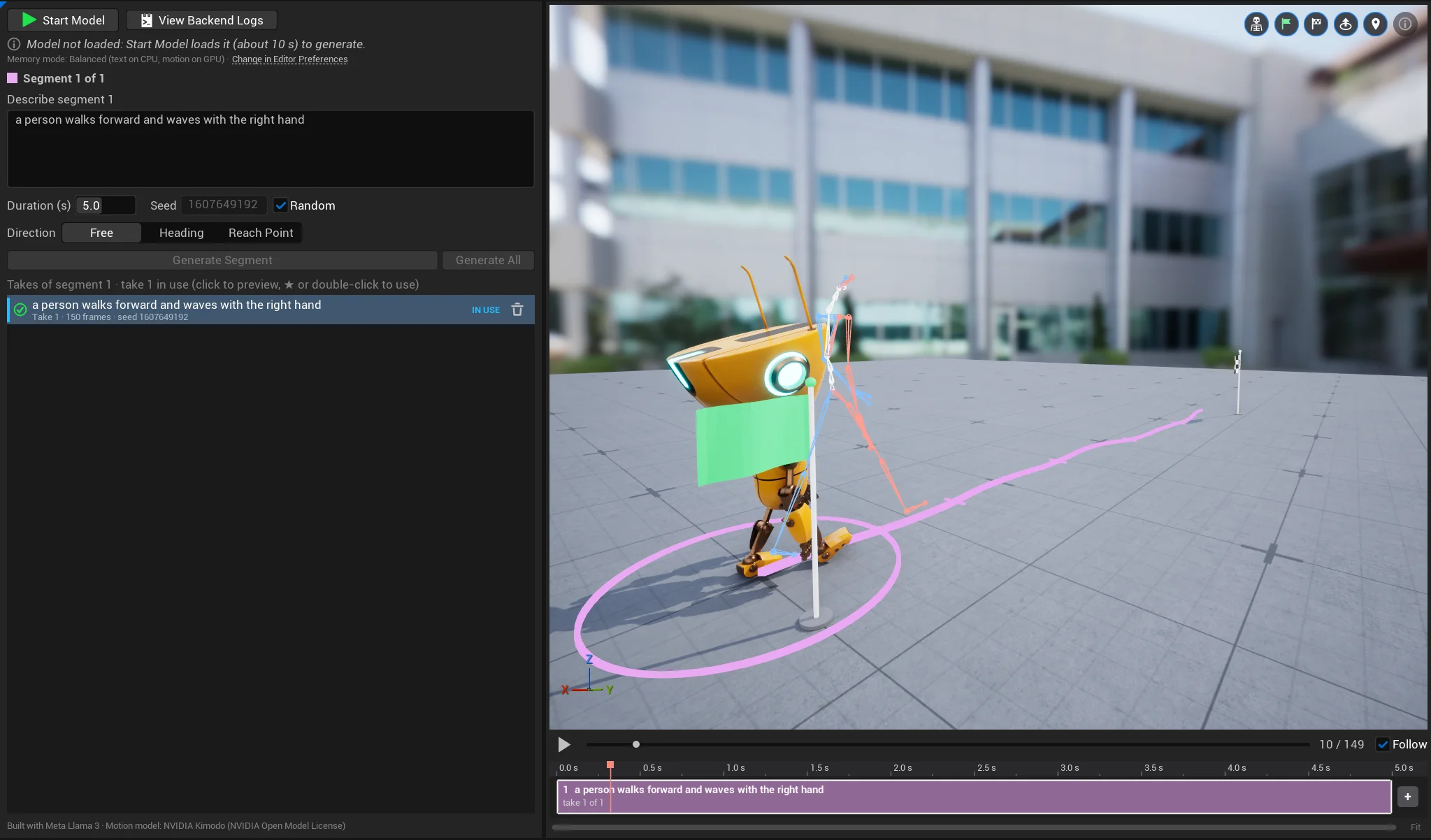
Each segment has a Direction:
| Mode | What it does |
|---|---|
| Free | The prompt alone decides where the character goes. |
| Heading | The character turns to face a direction by the end of the segment. |
| Reach Point | The character ends the segment at a point on the floor. |
Set it in the inspector or directly in the viewport: drag the ring to change the heading, drag the sphere to move the end point, or double click on the floor to place it.
Ctrl+Z.From Clip to animation
The Details panel on the right holds Transition Frames, the Preview Mesh and the Outputs; the Backend Log tab below it shows the model process. When the sequence looks right, use Create Animation in the toolbar: see Create Animation Sequences.